








Screen Time is a built-in feature on iPhone, iPad, iPod touch, and Mac that helps you monitor and manage how much time you and your family spend on devices. It also allows you to set a passcode to restrict access to Screen Time settings, ensuring only authorized changes can be made. However, many users often forget their Screen Time passcode or the linked Apple ID password, making it difficult to make changes or regain access. This raises an important question: how can you reset or recover your Screen Time passcode without the Apple ID?
Thankfully, even though you don't have the Apple ID, there are multiple ways to reset or bypass the Screen Time passcode. You can read on and see how to reset or recover Screen Time passcode without Apple ID and regain control of your device.
- Part 1. Can You Reset Screen Time Passcode without Apple ID?
- Part 2. How to Reset Screen Time Passcode via Family Sharing [Native Way]
- Part 3. How to Reset Screen Time Passcode via Third-Party Tools [No Data Loss]
- Part 4. How to Reset Screen Time Passcode via Factory Reset [Data Loss]
- Part 5. FAQs about Resetting Screen Time Passcode
- Part 6. Conclusion
Part 1. Can You Reset Screen Time Passcode without Apple ID?
With the Screen Time passcode or Screen Time Passcode Recovery Apple ID, you can easily change or reset the Screen Time passcode in Settings. But if you have no clue of the Screen Time passcode and haven't linked the Screen Time passcode to an Apple ID for recovery, then you usually cannot reset the Screen Time passcode through Apple's provided methods. Fortunately, there are 6 feasible methods to remove or recover a forgotten Screen Time passcode, allowing you to reset Screen Time passcode without Apple ID.
| Method | Data Loss | Suitable Devices | Find My |
|---|---|---|---|
| Family Sharing | ❌ | Parental-controlled device | / |
| MagFone iPhone Unlocker | ❌ | All devices | Disabled |
| Reincubate iPhone Backup Extractor | ❌ | All devices | / |
| Pinfinder | ❌ | Devices running iOS 7.0 to iOS 12.4 | / |
| iTunes | ✔️ | All devices | Disabled |
| Recovery Mode | ✔️ | All devices | Disabled |
Part 2. How to Reset Screen Time Passcode via Family Sharing [Native Way]
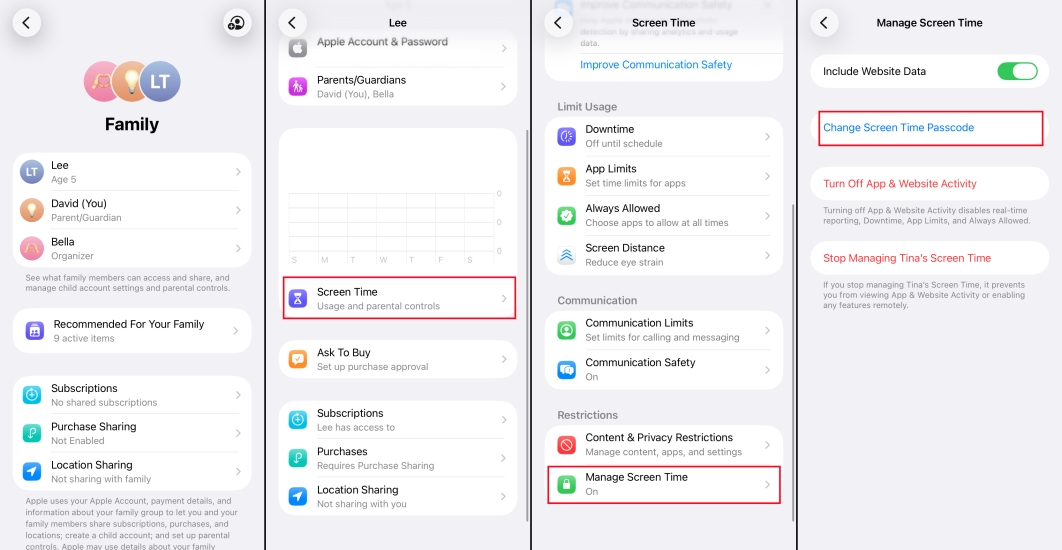
If you're part of a Family Sharing group, the Family Organizer can help you reset your Screen Time passcode. This is a convenient option that doesn't require your Apple ID password. Family Sharing offers the organizer control over Screen Time settings, making it easier to manage or reset passcodes for shared devices.
Step 1. Switch to Settings.
Step 2. Enter Screen Time and tap the family member under the FAMILY tab.
Step 3. Tap Manage Screen Time > Change Screen Time Passcode > Change Screen Time Passcode.
Step 4. Enter the iPhone passcode to reset the Screen Time passcode for the family member's device.
Part 3. How to Reset Screen Time Passcode via Third-Party Tools [No Data Loss]
Changing the Screen Time passcode on the Family Sharing organizer's device is relatively the most convenient way to reset the Screen Time passcode without Apple ID. But if your device is not managed or parental-controlled, there are also some tools that can help you remove or figure out the Screen Time passcode on your iPhone. Then you reset the Screen Time passcode afterwards.
Method 1. Remove Screen Time Passcode via MagFone Screen Time Remover
Among the third-party tools, Screen Time passcode removal is more recommended, because it can help you remove the Screen Time passcode on Apple devices, whether it's a parental-controlled device, managed device, or the family organizer's device. For an all-in-one solution to reset Screen Time passcode without Apple ID, you can consider the tool MagFone iPhone Unlocker.
MagFone iPhone Unlocker is a comprehensive tool that can be used to remove Screen Time passcode and delete Apple ID, MDM locks, as well as screen passcode. With the support of MagFone iPhone Unlocker, you can easily delete the Screen Time passcode on your iPhone without losing any data. To reset the Screen Time passcode without Apple ID, follow these steps.

MagFone iPhone Unlocker
Unlock various locks on iOS devices, including screen locks, MDM, Apple ID, and Activation Lock without needing a password.
Step 1 Get iPhone Connected to Computer
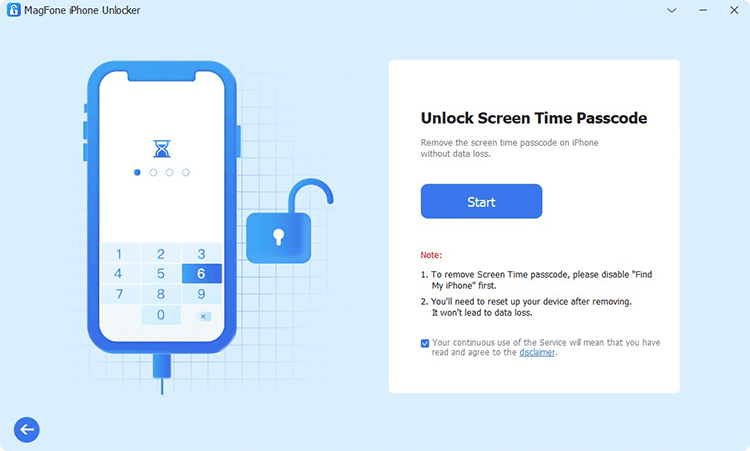
First up is to connect your iPhone to a computer through a USB cable. Then open MagFone iPhone Unlocker on the computer and select the Unlock Screen Time Passcode option. Make sure that your iPhone is detected by MagFone software, then click the Start button.
Step 2 Delete Screen Time Passcode on iPhone
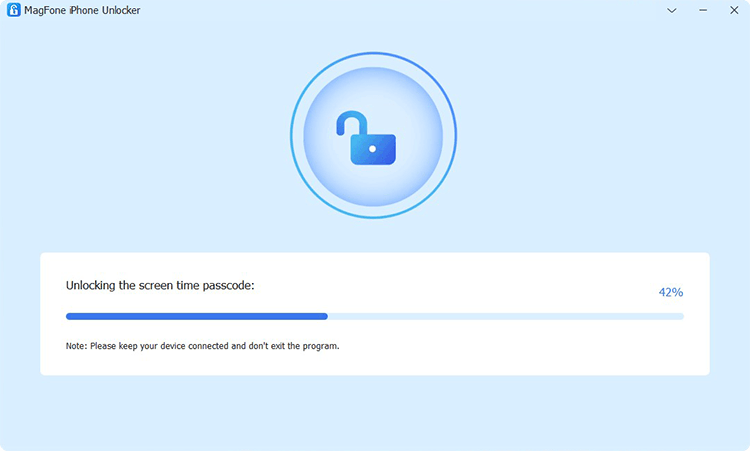
To delete the Screen Time passcode on your iPhone, you need to disable the Find My feature first. Head to Settings > Your iPhone > Find My and tap Find My iPhone, then toggle it off. Now click the Unlock button to remove the Screen Time passcode without losing the data.
Step 3 Go to Set up iPhone for Use Again
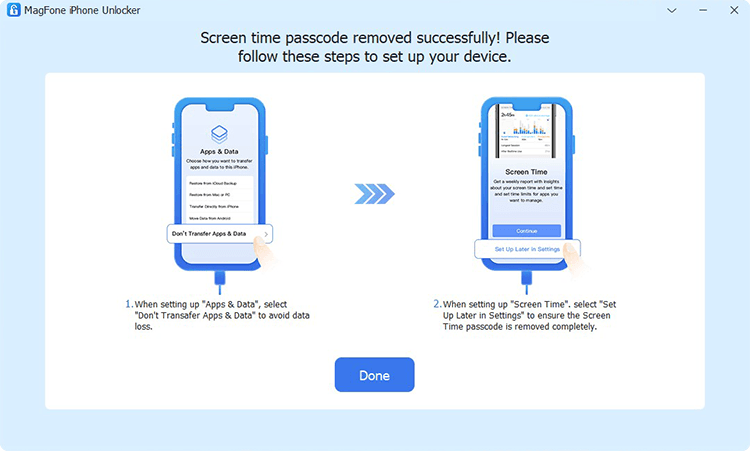
You have to follow the onscreen instruction to set up your iPhone for use. On the Apps & Data page, tap Don't Transfer Apps & Data. Then continue to tap Set Up Later in Settings. After that, click the Done button on the MagFone software to finish the whole process.
Method 2. Find Screen Time Passcode via iPhone Backup Extractor
Apart from Screen Time passcode remover, there are also tools that can help recover Screen Time passcode without Apple ID. Reincubate iPhone Backup Extractor is one that can recover and transfer lost iPhone messages, photos, calendars, contacts, notes, locations, and data from iPhone backups and iCloud. If you lost or forgot the Screen Time passcode, then you can use this tool to remove it. Make sure that the Screen Time passcode is set on the backed-up device.
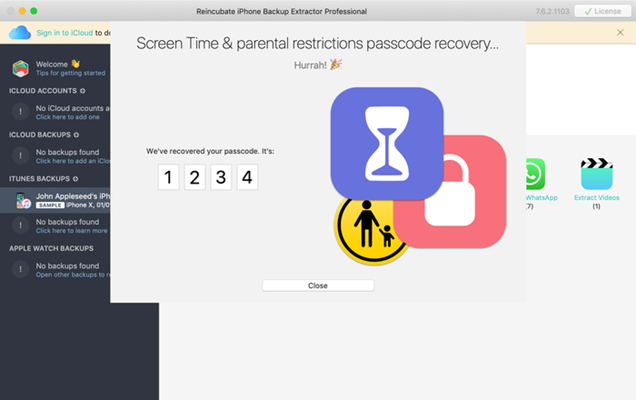
Step 1. Download and install Reincubate iPhone Backup Extractor on your computer and connect your device to the computer using a data cable.
Step 2. On the left side of the software's screen, select your device.
Step 3. Click the Utilities button at the top of the screen and select the Recover Screen Time / Restrictions Passcode option.
Step 4. Click the Let's Start option to start removing the Screen Time passcode on your iPhone.
Method 3. Recover Screen Time Passcode via Pinfinder
Pinfinder is a free tool that supports extracting the Screen Time passcode from iTunes backup. It is compatible with Windows, Mac, and Linux. But it can only restore the Screen Time passcode on the iPhone running from iOS 7.0 to iOS 12.4. If your device hasn't been updated to the latest version of iOS, you can use this tool to find your Screen Time passcode.
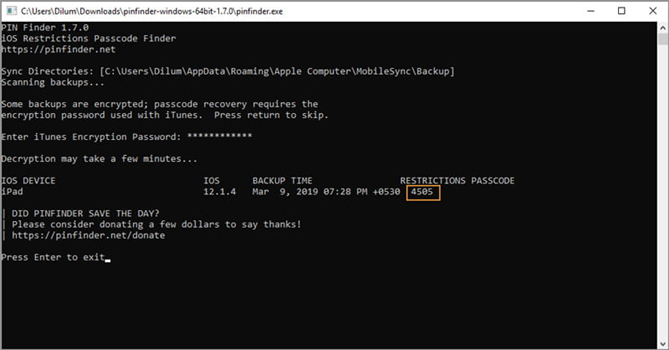
Step 1. Get your iPhone connected to a computer and make a backup of your device by using iTunes.
Step 2. Click your device icon and go to the Summary tab, then click on Summary > Back Up Now.
Step 3. Right-click the downloaded package of Pinfinder and run it by clicking the Run button.
Step 4. On the screen of Pinfinder, enter your iTunes encryption password and press Enter on the keyboard. Then the Screen Time passcode will appear on the screen.
Part 4. How to Reset Screen Time Passcode via Factory Reset [Data Loss]
Following the methods before, you can successfully reset the Screen Time passcode on your device. If you want a thorough way to reset the Screen Time passcode, there are two methods that can help remove all content and data on your device, including the Screen Time passcode. So, you can reset Screen Time afterwards.
Method 1. Erase Screen Time Passcode through iTunes
Restoring your device via iTunes is an option to reset Screen Time passcode without Apple ID via a factory reset. This method erases all content and settings, including the Screen Time passcode, essentially giving you a fresh start. While this solution guarantees success, it's essential to back up your data beforehand, as everything on your device will be wiped.
Note:
Ensure that Find My is disabled on the device, or you cannot use iTunes to restore it.
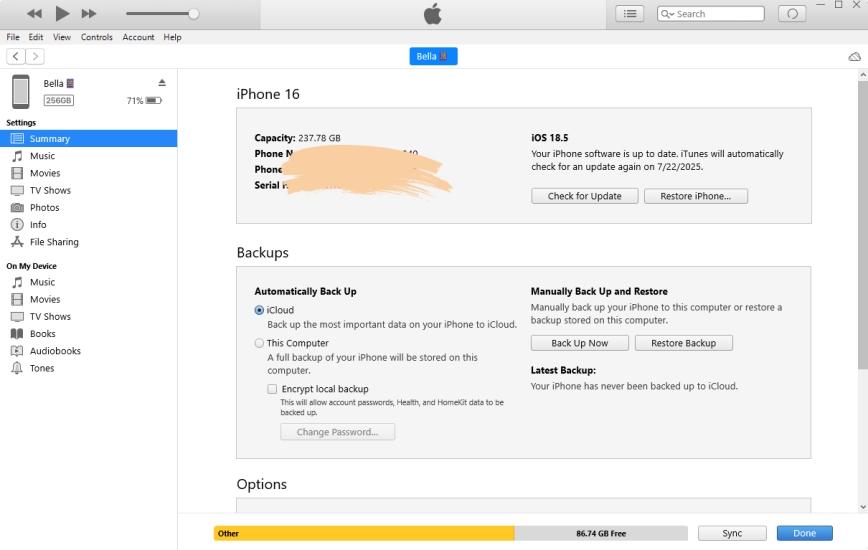
Step 1. Open iTunes on a PC or the Finder on a Mac and connect your device to the computer using a data cable, then click the device icon.
Step 2. In iTunes, go to the Summary tab and click the Restore iPhone button.
Step 3. In the pop-up window, click the Restore iPhone button again to confirm.
Method 2. Wipe Screen Time Passcode in Recovery Mode
Recovery Mode is another effective way to factory reset your iPhone and remove the Screen Time passcode when you can't restore the device directly through iTunes. By putting your iPhone or iPad into Recovery Mode and restoring it with iTunes or Finder, you can completely erase the device and delete the existing Screen Time passcode.
Note:
Ensure that Find My is disabled on the device, or it will trigger activation lock.

Step 1. Use a data cable to connect the iPhone to a computer and open iTunes.
Step 2. Get the iPhone into recovery mode:
- iPhone 8 or later: Quickly press and release the Volume Up button, then the Volume Down button. Hold the power button until the Recovery Mode screen appears.
- iPhone 7 series: Hold the Volume Down and power button simultaneously until the Recovery Mode screen appears.
- iPhone 6s or earlier: Hold the Home button and power button simultaneously until the Recovery Mode screen appears.
Get an iPad, iPhone, or iPod touch into recovery mode with one click for free.
Step 3. When iTunes detects your device, click the Restore option on the pop-up window, and your device will be restored to the factory state.
Part 5. FAQs about Resetting Screen Time Passcode
-
How to reset Screen Time passcode after 10 failed attempts?
After 10 failed attempts, you'll need to rely on recovery methods such as using iTunes or iCloud to restore the device. Besides, you can also bypass it with specialized iPhone unlockers like MagFone Screen Unlocker without data loss.
-
How to reset Screen Time passcode with Apple ID?
If you have linked the Screen Time passcode to an Apple ID for recovery, you can use the Apple ID to reset Screen Time passcode:
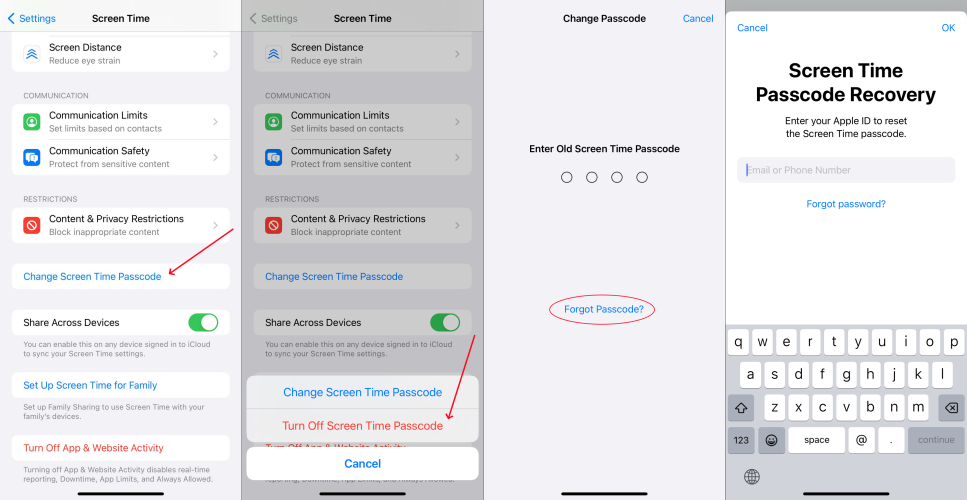
Step 1. Go to Settings > Screen Time > Change Screen Time Passcode.
Step 2. Tap Forgot Passcode? option and enter the linked Apple ID and password to reset the Screen Time passcode.
-
How to reset forgotten Screen Time passcode?
To reset a forgotten Screen Time passcode, first try recalling it. If you can't recall it, use the Forgot Passcode option (if enabled) to reset it with your Apple ID. Or use tools like MagFone iPhone Unlocker to bypass the Screen Time passcode.
Part 6. Conclusion
The process of resetting the Screen Time passcode without Apple ID is not nearly as difficult as you think. After reading the whole article, you'll learn how to change the Screen Time passcode without Apple ID. Here we recommend you use MagFone iPhone Unlocker. It can help you quickly delete your forgotten Screen Time passcode, and then you can create a new passcode for Screen Time. Go to have a try, and you'll find out.

Dylan Jones
Editor in chief





